6. How to Get Your Content Onto a Template
How to get your content onto a template
Using a template is simpler than it seems, and starting with one greatly reduces the amount of editing needed later.
Using the correct paste method can save you from weird spacing, off-brand fonts, and incorrect formatting.
Paste Smarter Method
- Best: Create your content in the template
- Good: Paste with CTRL + V, then Clear Formatting
- Okay: Paste as Plain Text
- Last Resort: Retype by hand
What to do if Pasting Goes Wrong
There are several ways to clear formatting from the upper menu:
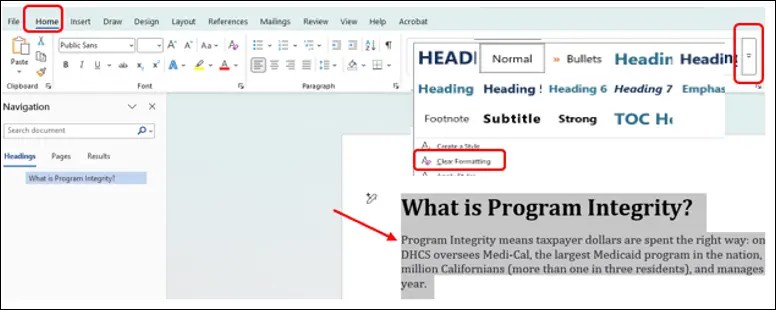
From the Styles Group:
- Select the affected text
- Select the Home tab
- Select the drop-down in the Styles group
- Select Clear Formatting
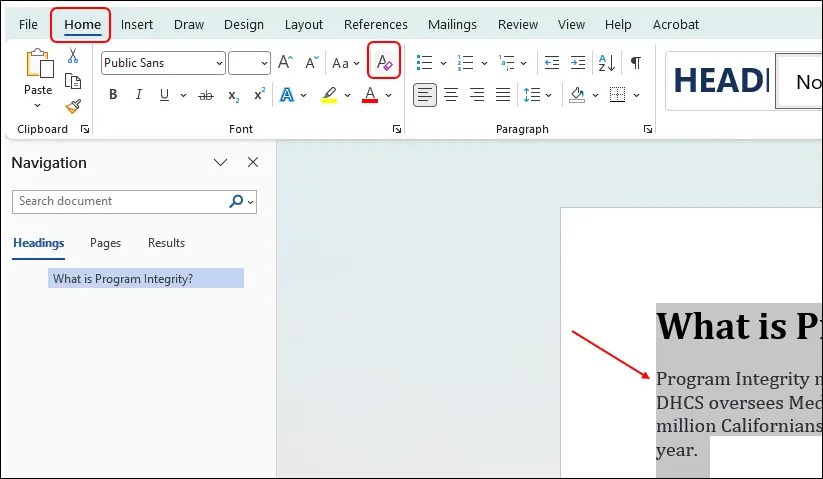
From the Font Group:
- Select the affected text
- Select the Home tab
- Select the Clear Formatting icon from the Font Group
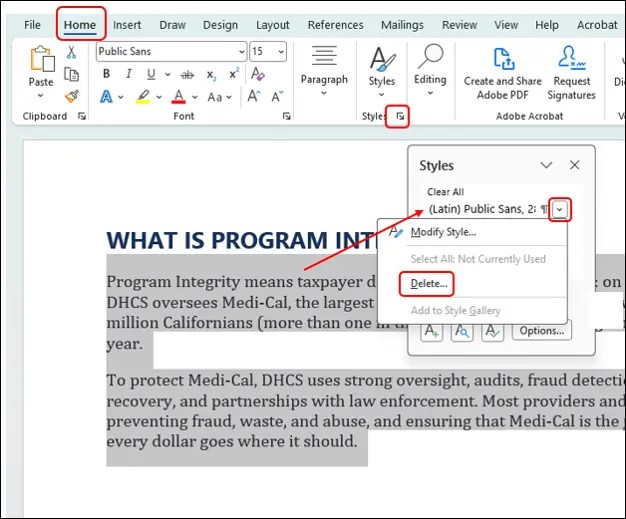
From the Styles Group:
- Select the Home Tab, go to the Styles group
- Select the Styles Dialog- Box Launcher (the small arrow in the bottom right corner)
- Locate the bad pasted-in Style in the pop-up window
- From the drop-down arrow to the right, select Delete
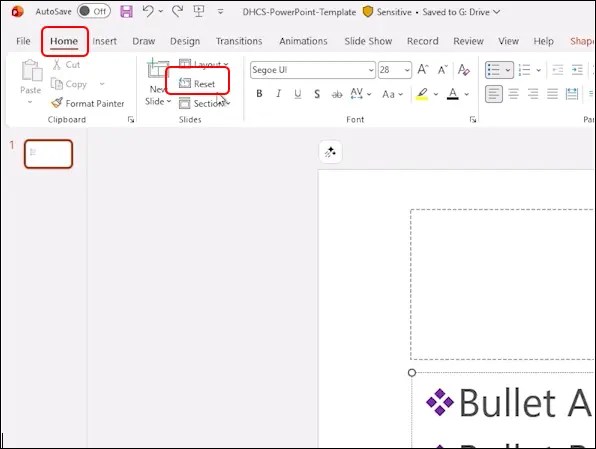
In PowerPoint:
- Go to the Home tab
- Select Reset