
How To…
How to Enroll as an Approver
The organization head (County Mental Health Director / Alcohol and Drug Administrator) designates two approvers and one Vendor (if applicable) for each system, by submitting the Approver certification & Vendor designation form, to
Department of Health Care Services (DHCS). The approver certification forms are available on the BHIS portal website.
How to Enroll as a User
County employee or vendor employee needs to contact the designated county Approver, for the system.
How to Open Encrypted Email
- Once a new account is created in the BHIS Portal, the User/Approver will receive an Encrypted email with a username and temporary password, from BHIS@dhcs.ca.gov, as seen below: (depending on the setting of your browser you may have to turn off the pop-up blocker the instructions are given at the bottom of this document).
- Please make a note that the temporary password sent here must be changed before you login for the first time to
the BHIS Portal. Under no circumstance should you use the temporary password given to login to the BHIS Portal.

- If you select the message file (the attachment), it will take you to another screen as shown below:
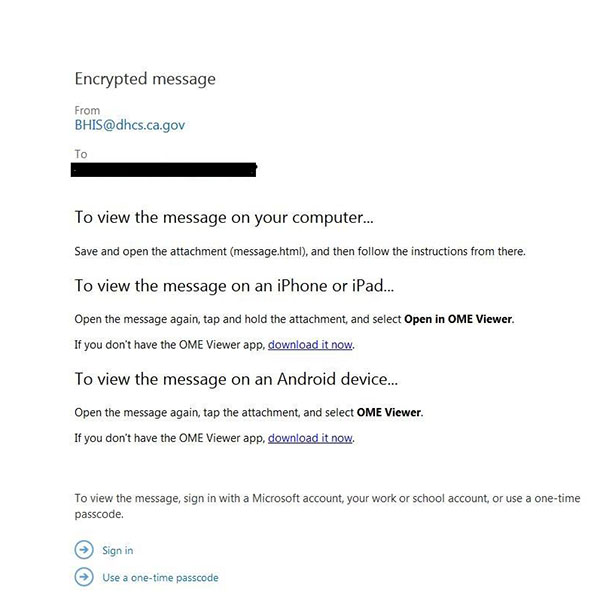
- Please select the “Use a one-time passcode” link and you will be directed to another screen as shown below:
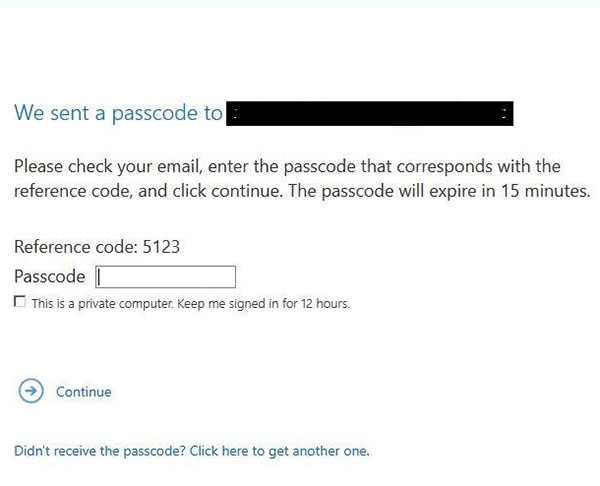
- As mentioned on this page, please refer to your work e-mail inbox for an e-mail from “MicrosoftOffice365@messaging.microsoft.com” for the one time passcode. You will receive an e-mail as shown below:
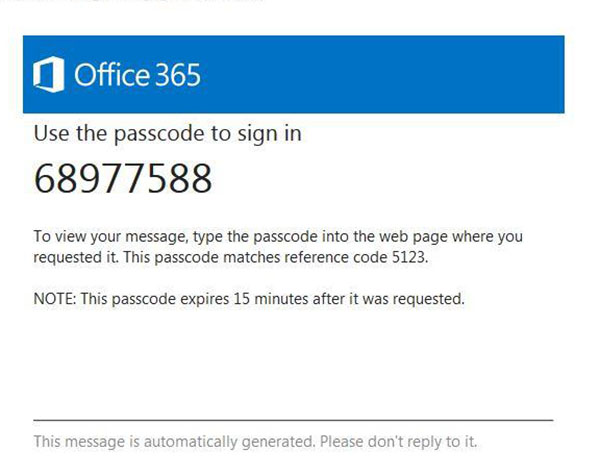
- Use the passcode in the e-mail from “MicrosoftOffice365@messaging.microsoft.com” as shown above and input it into the “Passcode box” as shown in the previous screenshot. Once done correctly you will be directed to the actual e-mail from “BHIS@dhcs.ca.gov” with your BHIS Portal username, a temporary password and a link to change the password to access BHIS Portal.
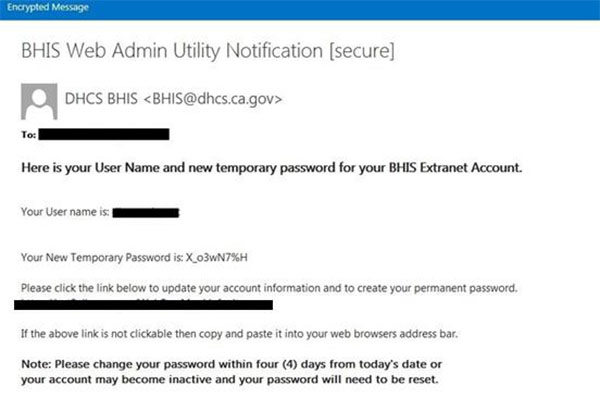
- Please select the link, provided in the email, and follow on screen directions to change the temporary password.
How to Turn Off Pop-Up Blocker
Internet Explorer
- Go to Tools > Internet Options > Security > Trusted Sites > Sites
- Enter “https://*.ca.gov” click Add
Google Chrome
- Go to ‘Customize and Control Chrome’ > Settings > Show Advanced Settings
- Under Privacy option, select ‘Content Settings’
- Under Pop-ups, select ‘Manage exceptions’
- Enter “*.ca.gov” in the Hostname pattern textbox. Make sure the setting selected is ‘Allow’
- Select Done. Close the Control windows
Safari
- Safari does not have an “allowed sites” function. To enable pop-ups only for certain websites in Safari, you will have to turn off the pop-up blocker while on the site and turn it on again
- Go to Settings > uncheck ‘Block Pop-up Windows’
How Can I Get Additional Help?
Please see the Contact Us link on the BHIS Portal webpage.